JSON Viewer Online
Free online JSON viewer — paste any JSON to instantly view it as a structured, indented layout with type info and key counts. 100% browser-based, no signup.
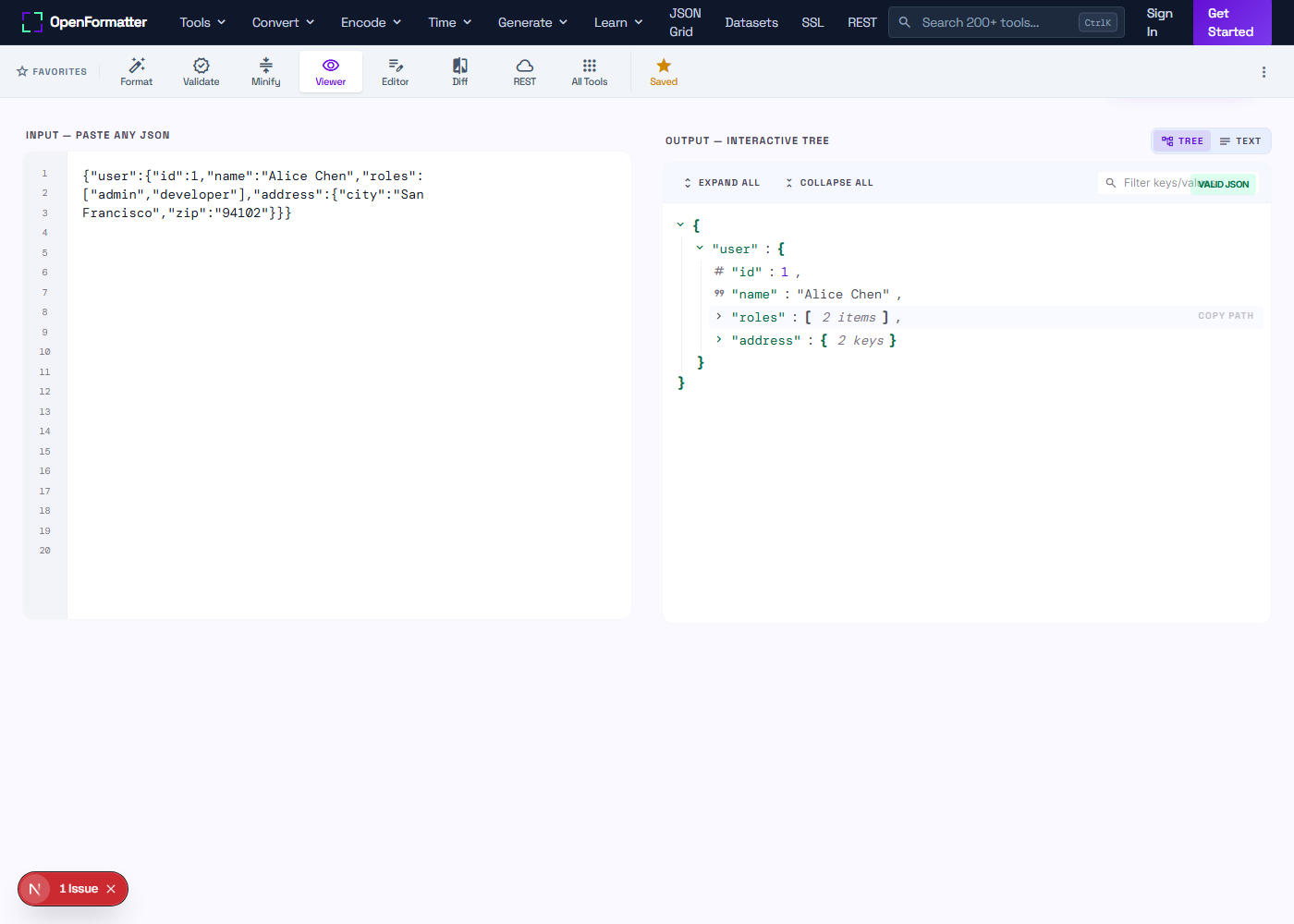
Paste JSON or click Sample to see the interactive tree.
Click any node to expand/collapse. Hover a row to copy its path.
Definition
What is a JSON Viewer?
A JSON viewer — also called a JSON tree viewer — parses raw JSON and displays it as a hierarchically indented, readable layout. It shows each key, value, data type, and nesting level at a glance. Unlike a plain formatter, it also reports structural metadata: root type, key count, and nesting depth. Nothing changes in the data.
Input
Any valid JSON
Output
Indented layout
Shows
Types + counts
Changes
Nothing
What Is an Online JSON Viewer?
An online JSON viewer parses raw JSON and renders it as a readable, hierarchically indented layout — showing each key, value, data type, and nesting level clearly. It's the fastest way to explore an unfamiliar JSON response without installing any local software.
This tool is optimized for one thing: understanding JSON structure at a glance. Unlike a JSON Formatter that focuses on producing clean indented text output, the viewer also reports root type, top-level key count, and renders a structured error message when JSON is invalid. To modify the JSON you're viewing, use the JSON Editor.
Features at a Glance
- check_circleAuto-views valid JSON on paste — instant, no button click
- check_circleRoot type detection: object, array, string, number
- check_circleTop-level key / item count for immediate structure summary
- check_circleStructured error block with validator link for invalid JSON
- check_circleSample JSON to explore the tool immediately
- check_circleCopy formatted output to clipboard with visual feedback
- check_circleCtrl+Enter keyboard shortcut
- check_circlePrivate by design — 100% browser-based, no upload
Understanding JSON Structure
JSON (JavaScript Object Notation) is a text-based data format built on two universal structures: objects and arrays. Every JSON document is either an object or an array at its root. Both can be nested inside each other to any depth — which is exactly why a JSON viewer matters: it makes that hierarchy immediately visible without mentally parsing brackets.
JSON Object
{}A collection of key-value pairs wrapped in curly braces. Keys must be strings in double quotes. Values can be any JSON type. Order is not guaranteed by the spec — see the JSON Objects reference.
{
  "name": "Alice",
  "age": 30,
  "active": true
}JSON Array
[]An ordered list of values wrapped in square brackets. Accessed by numeric index starting at 0. Items can be any JSON type and can be mixed — see the JSON Arrays reference.
[
  "platform",
  "security",
  {"id": 1, "name": "ops"}
]
Nesting: Objects Inside Arrays Inside Objects
The power — and complexity — of JSON comes from nesting. A field's value can be another object, which contains arrays, which contain more objects. A JSON viewer makes each level visible by indenting one step per depth:
{
  "user": {              ← root object, depth 1
    "teams": [           ← nested array, depth 2
      {                  ← object inside array, depth 3
        "id": 1,         ← primitive value, depth 4
        "name": "ops"
      }
    ]
  }
}
Each 2-space indent = one nesting level deeper. Count leading spaces ÷ 2 to determine depth.
The 6 JSON Data Types Explained
JSON supports exactly six data types defined in RFC 8259. Unlike JavaScript, JSON has no undefined, no Date object, no BigInt, no functions, and no comments. Knowing which type each value is tells you how to use it in code.
string"Alice Chen"Text enclosed in double quotes. Supports Unicode. Escape special characters: \n (newline), \" (quote), \\ (backslash).
number42 / 3.14 / 1e10Integer or decimal. No int vs float distinction in JSON. NaN and Infinity are not valid JSON numbers — they become null when serialized.
booleantrue / falseExactly true or false, lowercase only. JSON has no truthy/falsy — only the literal values true and false are valid booleans.
nullnullRepresents the intentional absence of a value. Exactly null, lowercase. Use null rather than undefined — undefined is not a valid JSON type.
object{"key": "value"}An unordered collection of key-value pairs. Keys must be unique strings. Values can be any JSON type, including nested objects and arrays.
array[1, "two", true]An ordered sequence of values accessed by index starting at 0. Items can be mixed types. Nested arrays are valid.
See the JSON Syntax reference for the full grammar behind these six types.
How to Read a JSON Tree View
A JSON tree view represents a JSON document as an indented hierarchy where each level of indentation corresponds to one level of nesting. Reading indentation tells you ownership: a value indented deeper belongs to the parent key above it at the previous indentation level.
Four Reading Rules
Indentation = depth
Every 2 spaces = one nesting level deeper. A key at 4-space indent is at depth 2 (inside 2 containers).
Brackets define containers
{ opens an object, [ opens an array. The matching } or ] at the same indent level closes it.
Colon = key-value pair
"key": value is a property of the object it is indented inside. All siblings share the same parent.
Comma = sibling separator
A trailing comma means another item follows at the same level. No comma = last item in this container.
Annotated Example
{                      ← root object (depth 0)
  "user": {            ← object value (depth 1)
    "name": "Alice",   ← string (depth 2)
    "active": true,    ← boolean (depth 2)
    "scores": [        ← array (depth 2)
      95,              ← number item (depth 3)
      87               ← last item, no comma
    ]                  ← closes scores array
  },                   ← closes user object
  "count": 1           ← root-level number
}
Pro Tip
When reading deeply nested JSON, pick a target key and trace upward: every parent key at a lower indentation level owns this one. If "email" is at 4 spaces (depth 2) and "user" is at 2 spaces (depth 1), the full path is user.email. Use the JSON Pretty Printer to add consistent indentation first if your JSON arrives flat.
JSON Viewer vs JSON Tree Viewer: Are They the Same?
JSON viewer and JSON tree viewer are often used interchangeably — both refer to tools that display JSON as a hierarchical, readable structure. The distinction is rendering style, not intent:
Indented Text Tree
This toolRenders JSON as indented plain text — the same format as pretty-printed JSON. Every level of nesting is visible at once. Output is plain text: copyable, pasteable, and diffable. Works in any environment.
- checkAll levels visible simultaneously
- checkCopyable as plain text
- checkGreat for reading & code review
- checkNo JavaScript required to render
Interactive Collapsible Tree
Renders JSON as a clickable tree where nodes can be collapsed and expanded. Ideal for very large JSON files where you want to hide irrelevant branches. Requires JavaScript interactivity to operate.
- removeCollapse/expand individual nodes
- removeBetter for 500+ line JSON
- removeCannot copy as plain text easily
- removeRequires interactive rendering
| Characteristic | Indented Text Tree | Interactive Tree |
|---|---|---|
| All levels visible at once | ✓ Yes | ✗ Collapsed by default |
| Copy as plain text | ✓ Yes — select and copy | ✗ Requires export step |
| Best for large JSON (500+ lines) | ✗ Scrolling required | ✓ Collapse irrelevant branches |
| Code review / documentation | ✓ Preferred format | ✗ Not pasteable |
| Shows depth level instantly | ✓ Count indent spaces | ✓ Shown per node |
JSON Path Notation: Referencing Specific Values
JSONPath is a query syntax for selecting specific values from a JSON document — similar to XPath for XML. Once you can read a JSON tree view, you can express any value's location as a JSONPath expression. JSONPath is used by jq, Postman, API testing tools, and JSON Schema validators.
Sample JSON + JSONPath Reference
{
  "user": {
    "name": "Alice",
    "teams": ["platform", "security"],
    "preferences": {
      "theme": "dark"
    }
  }
}| JSONPath | Result | Explanation |
|---|---|---|
| $ | { "user": { ... } } | Root document |
| $.user | { "name": "Alice", ... } | The user object |
| $.user.name | "Alice" | Dot notation for nested key |
| $.user.teams | ["platform", "security"] | The teams array |
| $.user.teams[0] | "platform" | First array element (index 0) |
| $.user.preferences.theme | "dark" | Deeply nested value (depth 3) |
$ always represents the document root. Dot notation accesses object properties. Bracket notation with a number accesses array elements. On the command line, use jq to apply JSONPath-style queries: cat data.json | jq '.user.preferences.theme'.
How to View JSON Online — Step by Step
View any JSON structure in seconds — no login, no setup required.
Paste your JSON
Copy JSON from an API response, log file, config file, or any other source and paste it into the input panel above. Valid JSON is automatically formatted and displayed on paste — no button click needed.
Click View or press Ctrl+Enter
Click the View button (or press Ctrl+Enter). The tool parses your JSON, renders the indented tree layout, and shows root type and top-level key count in the toolbar. If the JSON is invalid, a structured error message explains what went wrong and links to the JSON Validator for exact error location.
Explore the structure and copy
Read the formatted output — use the indentation levels to navigate nested objects and arrays. The root type badge shows whether the top-level structure is an object or array. The key count shows how many direct children it has. Click Copy to copy the formatted JSON for documentation or debugging.
When to Use a JSON Viewer
A JSON viewer is the right tool when you need to understand JSON — not modify it. Here are the most common scenarios where developers reach for an online JSON viewer:
Exploring API Responses
You receive a large API response and need to understand its structure — how many top-level keys, what types of values, how deeply nested. The viewer parses it instantly and shows type and key count metadata before you read a single field.
Navigating Config Files
Complex configuration files like Kubernetes manifests, OpenAPI specs, or Webpack configs can be hundreds of lines deep. The indented tree makes the hierarchy immediately visible — jump to the right section without scrolling through raw text.
Understanding Nested Structures
When API responses have 5+ levels of nesting, flat text becomes unreadable. The tree view makes every depth level clear — see which keys belong to which parent without manually counting brackets.
Debugging Unexpected Data
When your application behaves unexpectedly, viewing the raw JSON payload it received often reveals the problem — a null where you expected a string, an array where you expected an object, or a missing key entirely.
Reviewing JSON Test Fixtures
Before committing fixture files for unit or integration tests, view them to confirm structure matches your expectations — correct nesting, right field names, valid data types throughout.
Inspecting JSON Schemas
JSON Schema documents are themselves JSON. Viewing a schema with $defs, allOf, and nested properties as a formatted tree is much easier than reading raw text — especially when debugging why a document fails validation.
Reading Deeply Nested JSON
Deeply nested JSON is the most common source of confusion when reading API responses. A REST response might wrap user data inside a response envelope, with preferences nested inside the user, with notification settings nested inside preferences — four levels deep before reaching a primitive value. The tree view makes each level visible instantly.
Compact — Unreadable
{"response":{"status":200,"data":{"user":{"id":1,"prefs":{"theme":"dark","lang":"en"}}}}}4 nesting levels. Zero visual hierarchy. You cannot see the structure without mental parsing.
Tree View — Instantly Clear
{
  "response": {
    "status": 200,
    "data": {
      "user": {
        "id": 1,
        "prefs": {
          "theme": "dark",
          "lang": "en"
        }
      }
    }
  }
}
Same data. Path to theme: $.response.data.user.prefs.theme
Tips for Navigating Deep Structures
Find your key, then trace upward
Scan for the key you care about, then look at each ancestor at lower indentation to build the full JSONPath.
Use the key count as a map
The toolbar shows the top-level key count. If there are 3 root keys, your target must be under one of them.
Count bracket pairs for very deep structures
For 7+ levels deep, count { and [ pairs. Each unclosed bracket = one open container still pending.
Use jq for programmatic extraction
Once you know the path from the viewer, jq lets you extract it on the command line: cat data.json | jq '.response.data.user.prefs.theme'
How to View JSON in Your Browser
Modern browsers have built-in JSON viewing capabilities for API responses — but they only work for network requests, not arbitrary JSON strings. For JSON you copy from logs, config files, or code, use this tool. Here's what each approach covers:
Chrome — Network Tab
- 1.Open DevTools (F12 or Cmd+Option+I)
- 2.Click the Network tab
- 3.Make an API request (reload the page or trigger a fetch)
- 4.Click the request row → select Preview tab
- 5.Chrome renders the JSON response as a collapsible tree automatically
Tip: The Response tab shows raw JSON text. Preview tab shows the interactive tree. Use Preview for exploration, Response for copying.
Firefox — Built-in JSON Viewer
- 1.Navigate directly to a JSON URL (e.g., an API endpoint) in the address bar
- 2.Firefox automatically renders it as a collapsible, searchable tree
- 3.Use the Filter box at the top to search for specific keys
- 4.Click Raw Data tab to see the original JSON text
Tip: Firefox has the best built-in JSON viewer of any browser — it works for any URL that returns application/json. Chrome requires an extension for the same behavior.
Chrome DevTools Console
- 1.Open DevTools Console (Ctrl+` or Cmd+`)
- 2.Run: copy(JSON.stringify(myObject, null, 2)) to copy an object as pretty JSON
- 3.Run: console.log(JSON.stringify(response, null, 2)) to print readable JSON
- 4.Paste the result here to view structure and metadata
Tip: The copy() trick works on any JavaScript object in scope — API responses, Redux store state, DOM properties. The clipboard gets pretty-printed JSON ready to paste here.
Browser viewers vs this tool: Browser DevTools only show JSON from network requests. This tool works on any JSON — clipboard content, log snippets, config values, test fixtures — and adds metadata like max depth and total key count that browser DevTools don't show.
Real-World JSON Examples
Common JSON structures you'll encounter as a developer, shown in tree-view format to illustrate how the viewer renders each. Paste any of these into the tool above to explore interactively.
REST API Response (Paginated)
Common{
"status": 200,
"data": {
"users": [
{ "id": 1, "name": "Alice", "role": "admin" },
{ "id": 2, "name": "Bob", "role": "user" }
]
},
"pagination": {
"page": 1,
"total": 142,
"per_page": 20
}
}3 root keys. data.users is an array of objects. Viewer shows root type: object, top-level keys: 3.
package.json (npm Config)
Config{
"name": "my-app",
"version": "1.0.0",
"scripts": {
"start": "node index.js",
"test": "jest"
},
"dependencies": {
"express": "^4.18.0"
},
"devDependencies": {
"jest": "^29.0.0"
}
}Root object with 5 keys. scripts, dependencies, and devDependencies are nested objects with string values.
GitHub Webhook Payload
Webhook{
"action": "opened",
"number": 42,
"pull_request": {
"title": "Fix login bug",
"state": "open",
"user": {
"login": "alice",
"type": "User"
},
"labels": []
},
"repository": {
"name": "my-repo",
"private": false
}
}pull_request.user.login is 3 levels deep. labels is an empty array — viewer shows it on one line as [].
Common JSON Patterns Every Developer Should Recognize
Most JSON you encounter in the wild follows one of a handful of well-known structural patterns. Recognizing the pattern immediately tells you what the JSON represents and how to navigate it:
Envelope / Wrapper
REST APIsRecognition signal: Root has "data", "result", or "payload" key wrapping the actual content
{
  "success": true,
  "data": {
    "user": { "id": 1, "name": "Alice" }
  },
  "meta": { "request_id": "abc-123" }
}
Tip: The actual content is always one level deeper than root. Viewer clue: root key count is small (2–4 keys); depth is high.
Paginated List
REST APIsRecognition signal: Root has "items"/"results"/"data" array + pagination object with "total", "page", "per_page"
{
  "items": [
    { "id": 1, "name": "Alice" },
    { "id": 2, "name": "Bob" }
  ],
  "pagination": {
    "page": 1, "total": 142, "per_page": 20
  }
}
Tip: Top-level key count is always 2 (items + pagination). Array length tells you how many items are on this page, not total.
RFC 7807 Problem Details (Error)
Error responseRecognition signal: Root has "type", "title", "status", "detail" — standard HTTP error format
{
  "type": "https://example.com/errors/validation",
  "title": "Validation Failed",
  "status": 422,
  "detail": "The email field is required.",
  "instance": "/users/register"
}
Tip: Used by modern APIs (Spring, FastAPI, .NET). "type" is always a URI. "status" mirrors the HTTP status code.
GraphQL Response
GraphQLRecognition signal: Root always has exactly "data" and optionally "errors" — never other top-level keys
{
  "data": {
    "user": {
      "id": "1",
      "name": "Alice",
      "posts": [{ "id": "10", "title": "Hello" }]
    }
  },
  "errors": null
}
Tip: GraphQL always returns 200 OK even for errors — check "errors" key, not HTTP status. Null "errors" means success.
JWT Payload (Decoded)
AuthenticationRecognition signal: Root has "sub", "iat", "exp" — standard JWT claims defined in RFC 7519
{
  "sub": "user-4821",
  "name": "Alice Chen",
  "email": "alice@example.com",
  "roles": ["admin"],
  "iat": 1714000000,
  "exp": 1714086400
}
Tip: "iat" and "exp" are Unix timestamps. exp - iat = token lifetime in seconds. Decode JWT at jwt.io to get this JSON.
jq Quick Reference: Exploring JSON from the Command Line
jq is the command-line equivalent of this viewer — it reads JSON from stdin or a file, lets you filter and transform it, and outputs pretty-printed results. Once you know a value's path from the viewer, jq lets you extract it in scripts and pipelines.
Install jq: brew install jq (macOS) · apt install jq (Debian/Ubuntu) · winget install jq (Windows) · or download from jqlang.github.io/jq
| Task | jq command | JSONPath equivalent |
|---|---|---|
| Pretty-print a file | jq . data.json | $ (root) |
| Pretty-print from stdin | echo '{"a":1}' | jq . | $ (root) |
| Get a nested value | jq '.user.name' data.json | $.user.name |
| Get first array item | jq '.user.teams[0]' data.json | $.user.teams[0] |
| Get all array items | jq '.user.teams[]' data.json | $.user.teams[*] |
| Filter objects in array | jq '.items[] | select(.role=="admin")' data.json | $.items[?(@.role=="admin")] |
| Count array items | jq '.items | length' data.json | length($.items) |
| Extract keys only | jq 'keys' data.json | Object.keys($) |
| Compact (minify) output | jq -c . data.json | JSON.stringify($) |
| Pretty from curl | curl -s api/users | jq . | paste response here |
Workflow tip: Use this viewer to explore the structure visually and identify the JSONPath to the value you need, then translate it to a jq filter for scripting. The path $.user.teams[0] becomes jq '.user.teams[0]' — drop the $ and replace it with ..
JSON Viewer vs JSON Formatter vs JSON Editor
All three tools display formatted JSON — but they serve different purposes. The viewer is read-only and adds structural metadata. The JSON Formatter produces clean indented text with configurable indent size. The JSON Editor lets you modify the JSON. Use whichever matches your current task:
| Feature | JSON Viewer | JSON Formatter | JSON Editor |
|---|---|---|---|
| Primary purpose | View & explore structure | Produce formatted text output | Write & modify JSON |
| Edit JSON content | ✗ Read-only | ✗ No | ✓ Yes (primary) |
| Type + key count | ✓ Yes | ✗ No | ✗ No |
| Max nesting depth | ✓ Yes — unique | ✗ No | ✗ No |
| Total recursive keys | ✓ Yes — unique | ✗ No | ✗ No |
| Configurable indent | ✗ Fixed 2-space | ✓ 2 / 4 / tab | ✓ 2 / 4 / tab |
| Auto-view on paste | ✓ Yes | ✓ Yes (pretty-print) | ✗ No |
| Best for | Exploring unfamiliar JSON | Producing readable text output | Modifying JSON interactively |
JSON Not Displaying? It Has Errors
The viewer requires valid JSON. If it shows a parse error, fix the JSON first — the JSON Validator gives you the exact line number and character position of every error. Common causes: trailing commas, single quotes instead of double quotes, unquoted keys, extra or missing brackets. See the JSON Errors Guide for before/after fixes for every common mistake.
Frequently Asked Questions
What is an online JSON viewer?expand_more
An online JSON viewer parses raw JSON and displays it as a readable, indented layout — showing structure, data types, and key counts without requiring a local editor. It is optimized for reading and exploring JSON, unlike a JSON editor which is optimized for modifying it.
What is a JSON tree viewer?expand_more
A JSON tree viewer renders JSON as a hierarchical, indented display where each branch represents a nested object or array and each leaf represents a primitive value. Indentation level equals nesting depth — you can read the entire hierarchy visually without counting brackets.
What is the difference between a JSON viewer and a JSON formatter?expand_more
A JSON formatter outputs indented plain text with configurable spacing. A JSON viewer renders an indented display with structural metadata: root type, key count, and type indicators. Viewers are better for exploring unfamiliar JSON; formatters are better for producing clean text output for code or documentation.
What are the 6 JSON data types?expand_more
JSON has exactly six data types: string (text in double quotes), number (integer or decimal), boolean (true or false), null (explicit absence of value), object (key-value pairs in curly braces {}), and array (ordered list in square brackets []). Objects and arrays can be nested inside each other to any depth.
How do I read deeply nested JSON?expand_more
Use indentation as your guide: each 2-space indent = one nesting level deeper. To find the full path to any value, trace upward through each parent key at lower indentation. For example, "theme" at 6 spaces deep under "preferences" at 4 spaces deep under "user" at 2 spaces = $.user.preferences.theme in JSONPath notation.
What is JSON Path notation?expand_more
JSONPath is a query syntax for selecting specific values from a JSON document. The root is $ (dollar sign). Keys use dot notation: $.user.name. Array elements use bracket notation: $.user.teams[0]. JSONPath is used in jq, Postman, API testing tools, and JSON Schema validators to reference specific parts of a document.
Can I edit JSON in the viewer?expand_more
The viewer is read-only and optimized for navigation and exploration. To modify your JSON, use the JSON Editor (openformatter.com/json-editor) which combines editing and real-time validation in one tool.
What is the difference between a JSON object and a JSON array?expand_more
A JSON object (curly braces {}) is a collection of named key-value pairs where keys are strings. A JSON array (square brackets []) is an ordered list of values accessed by numeric index starting at 0. Objects are best for named properties; arrays are best for ordered sequences or lists of similar items.
Can the JSON viewer handle large files?expand_more
Yes, up to several megabytes. For files over 10 MB, use the command-line tool jq for better performance: cat large.json | jq . will pretty-print any size file instantly.
Is this JSON viewer free and safe?expand_more
Yes — completely free, no account required, and 100% private. All JSON processing happens in your browser. No data is sent to any server, making it safe for API keys, credentials, and sensitive config files.
How do I view JSON in Chrome DevTools?expand_more
Open DevTools (F12), click the Network tab, make an API request, then click the request row and select the Preview tab. Chrome renders the JSON response as a collapsible tree. For JSON not from a network request — log snippets, clipboard content, config values — paste it into this tool instead, which also shows max nesting depth and total key count.
What is the maximum nesting depth JSON supports?expand_more
The JSON specification (RFC 8259) does not define a maximum nesting depth. In practice, parsers and browsers impose limits — JavaScript's JSON.parse handles 1000+ levels, but deeply nested JSON (10+ levels) is usually a design smell. This viewer shows the max depth of your JSON in the toolbar after parsing, so you can immediately see how deep the structure goes.
How do I extract a specific value from JSON using jq?expand_more
Use the JSONPath from the viewer, drop the $ prefix, and replace it with a dot: $.user.name becomes jq '.user.name'. Array access: $.user.teams[0] becomes jq '.user.teams[0]'. Pipe into a filter: jq '.items[] | select(.role=="admin")'. Run against a file: jq '.user.name' data.json or from stdin: cat data.json | jq '.user.name'.
Go Deeper
Related JSON Tools
Validate, format, edit, and learn JSON — everything around the viewing workflow.
JSON Validator
ToolValidate JSON syntax and get the exact line and character of every error.
JSON Formatter
ToolFormat JSON with configurable 2-space, 4-space, or tab indentation.
JSON Pretty Print
ToolInstantly beautify compact or minified JSON with sensible defaults.
JSON Editor
ToolWrite and modify JSON with real-time validation and download.
JSON Errors Guide
GuideEvery JSON syntax error with before/after fixes — trailing commas, quotes, brackets.
JSON Format Explained
ReferenceDeep dive into JSON structure, data types, objects vs arrays, and nesting.
About This Tool
This free JSON viewer is built and maintained by OpenFormatter — a suite of browser-based developer tools used by engineers worldwide for API response inspection, data exploration, and JSON debugging. All processing is client-side: no accounts, no data uploads, no limits.
Last updated: · Covers JSON viewing, structure analysis, JSON data types, tree view navigation, JSONPath notation, and real-world examples.
Part of the JSON Toolkit
Explore All JSON Tools
Free online tools for every JSON task — format, validate, convert, compare, and more.